Part 11. Wrapping up
72.
Once you are done, you can exit your cluster, and then update your snapshot:
(aws) $ update_snapshot.sh data 2 MyCluster01
73.
Once you receive the email notification, you can delete the cluster:
(aws) $ pcluster delete-cluster -n MyCluster01
74.
In the next lab, we will look at ways to parallelize the data processing.
75.
In the Part A, we started the process of setting up an AWS Budget to warn you when your credits are running low. You can now resume by going to your Billing Dashboard:
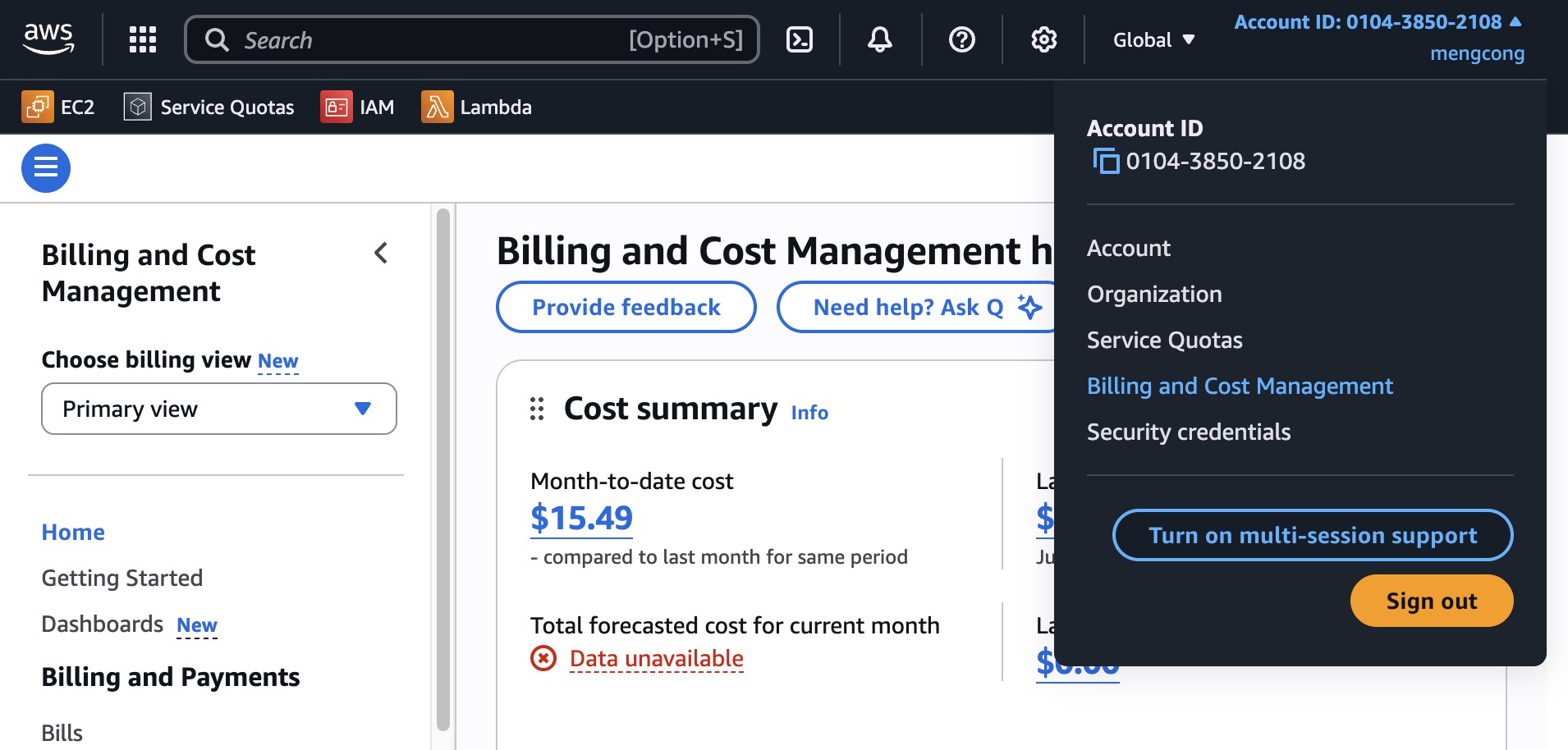
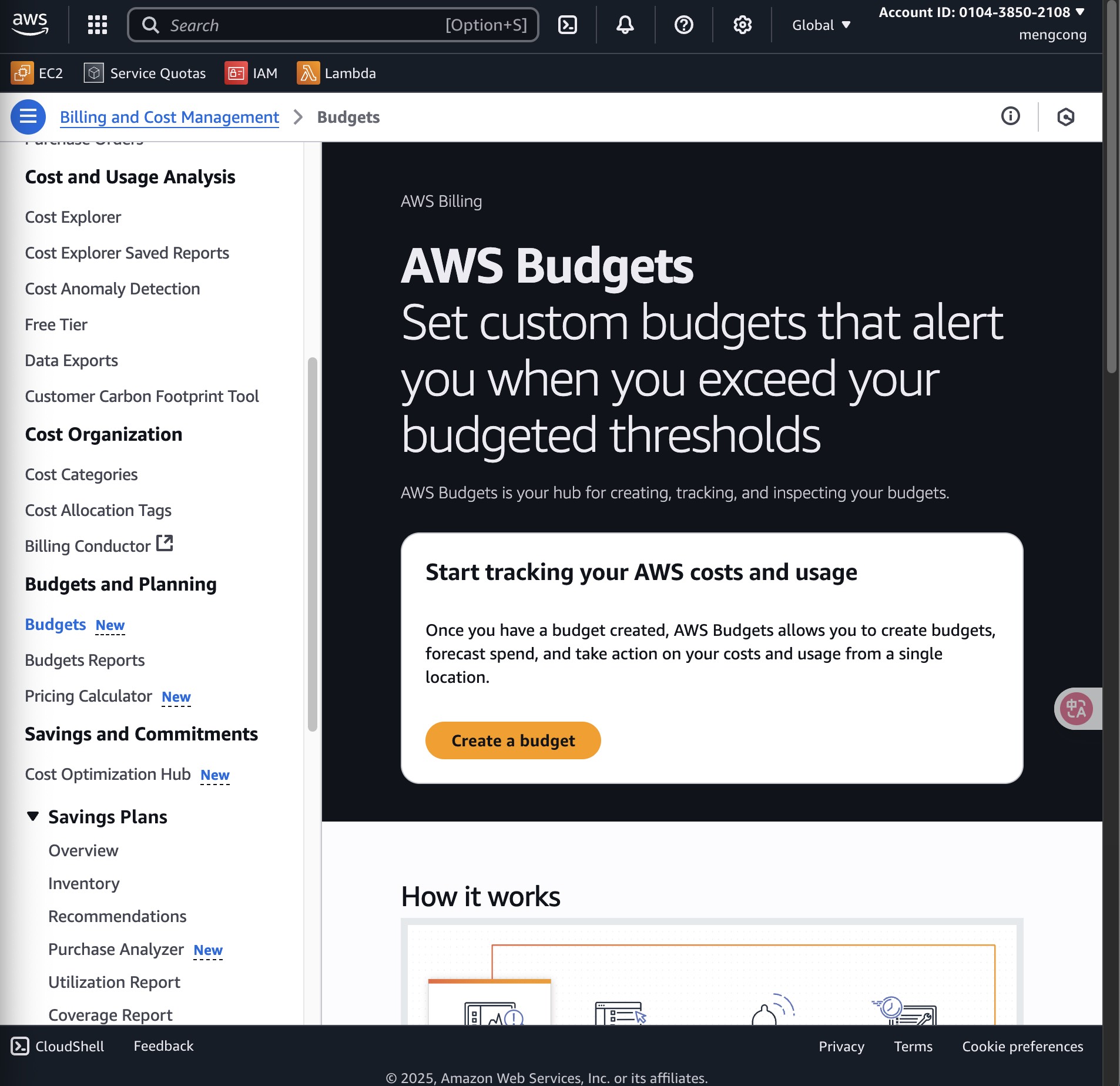
Click on Budget in the left panel:
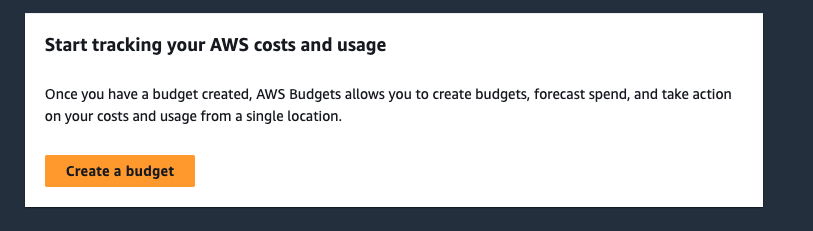
Click on the Create a budget button:
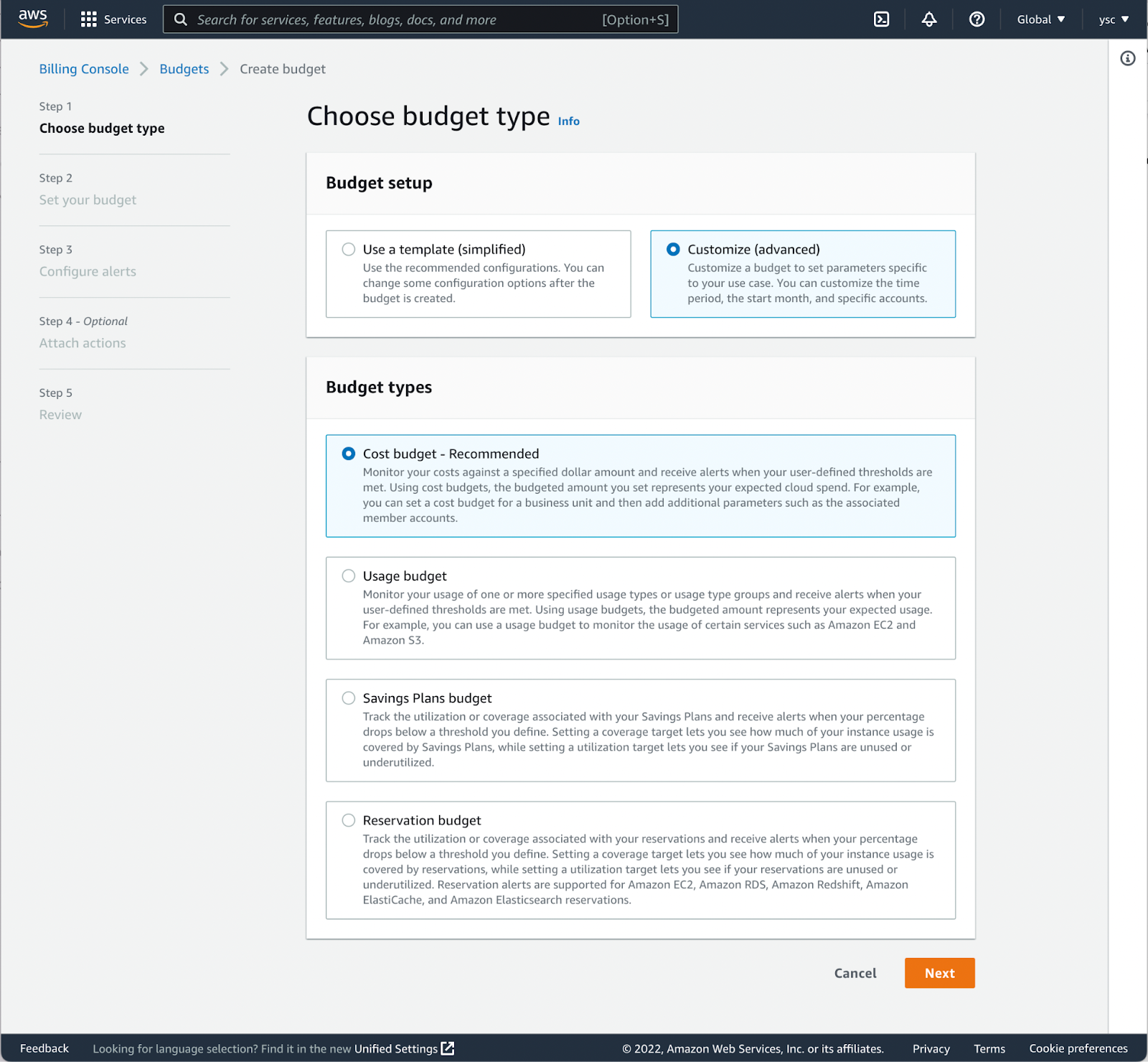
Choose Customize (advanced) under Budget setup, select the Cost budget - Recommended option, and scroll down to click the Next button:
Scroll down and name the budget as follow:
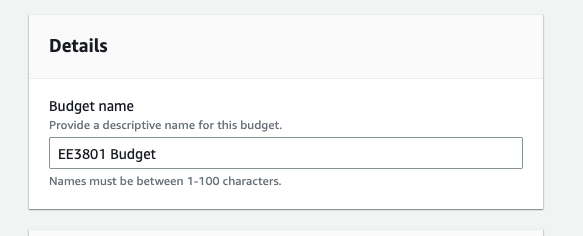
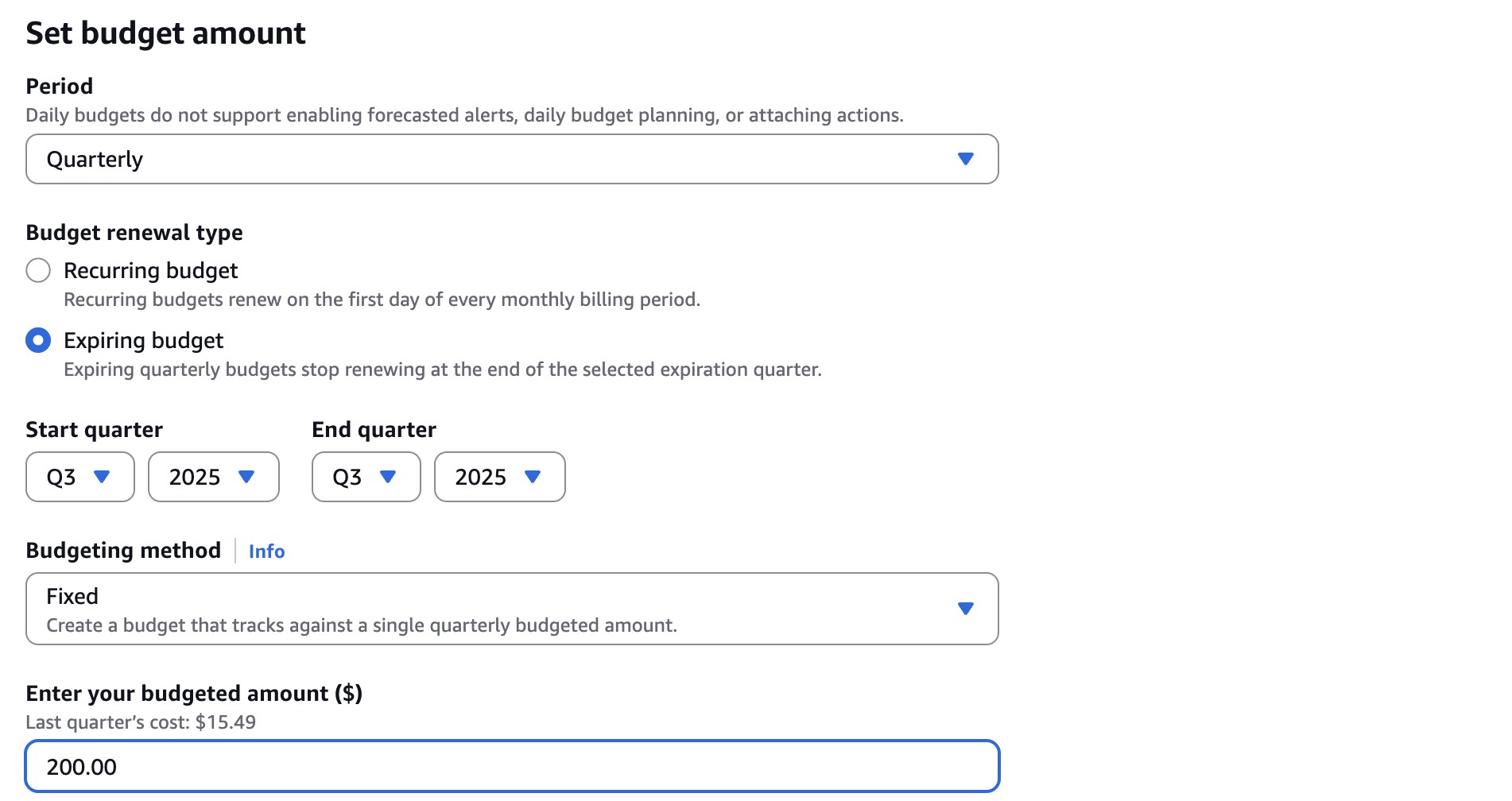
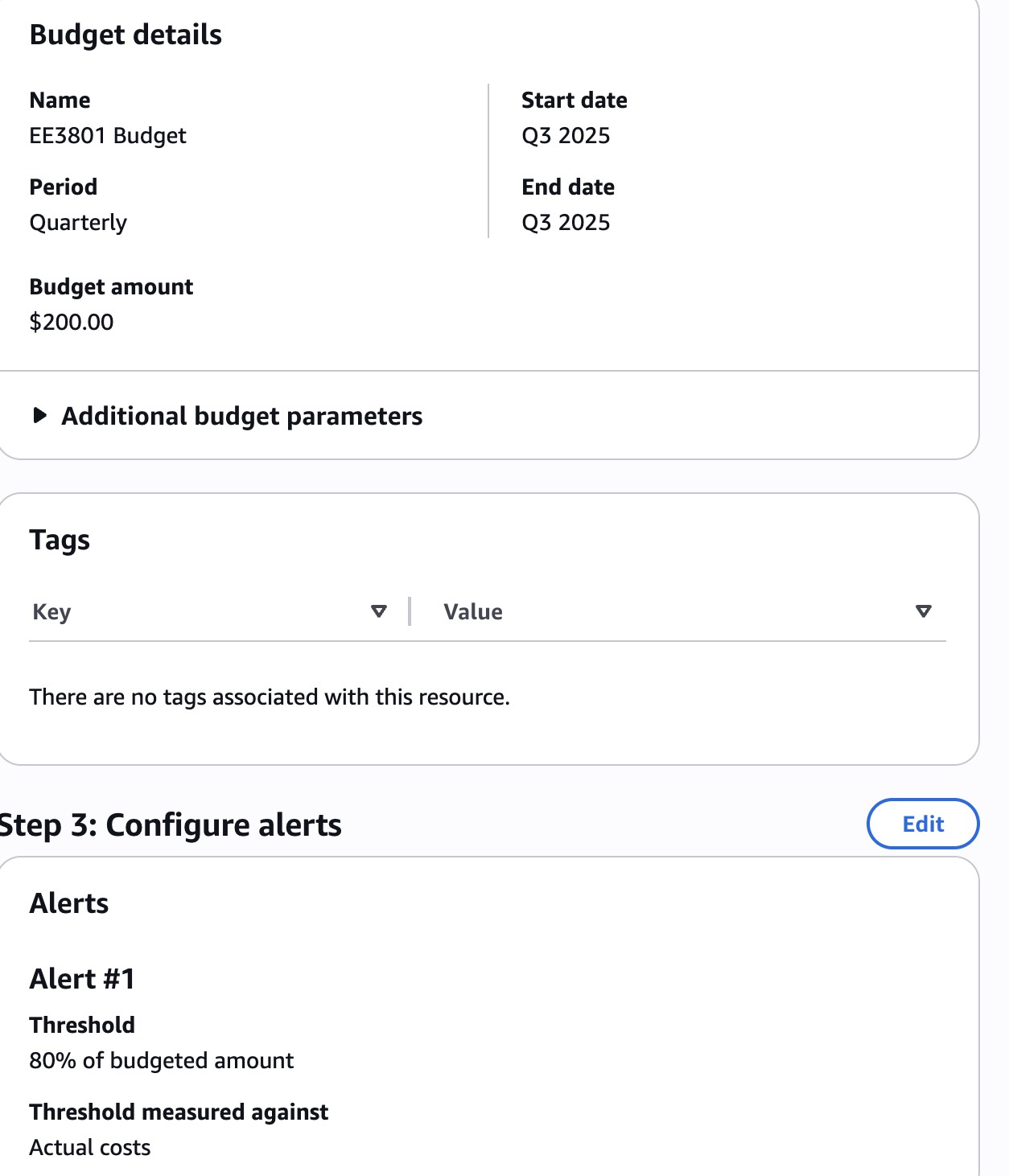
Scroll down to the Set budget amount section, select Quarterly under Period, Expiring budget under Budget effective date, Q3 and 2025 under Start quarter, Q3 and 2025 under End quarter, Fixed under Choose how to budget, and enter 200.00 in Enter your budgeted amount ($):
Scroll down and click Next.
Click on the “Add an alert threshold” button:
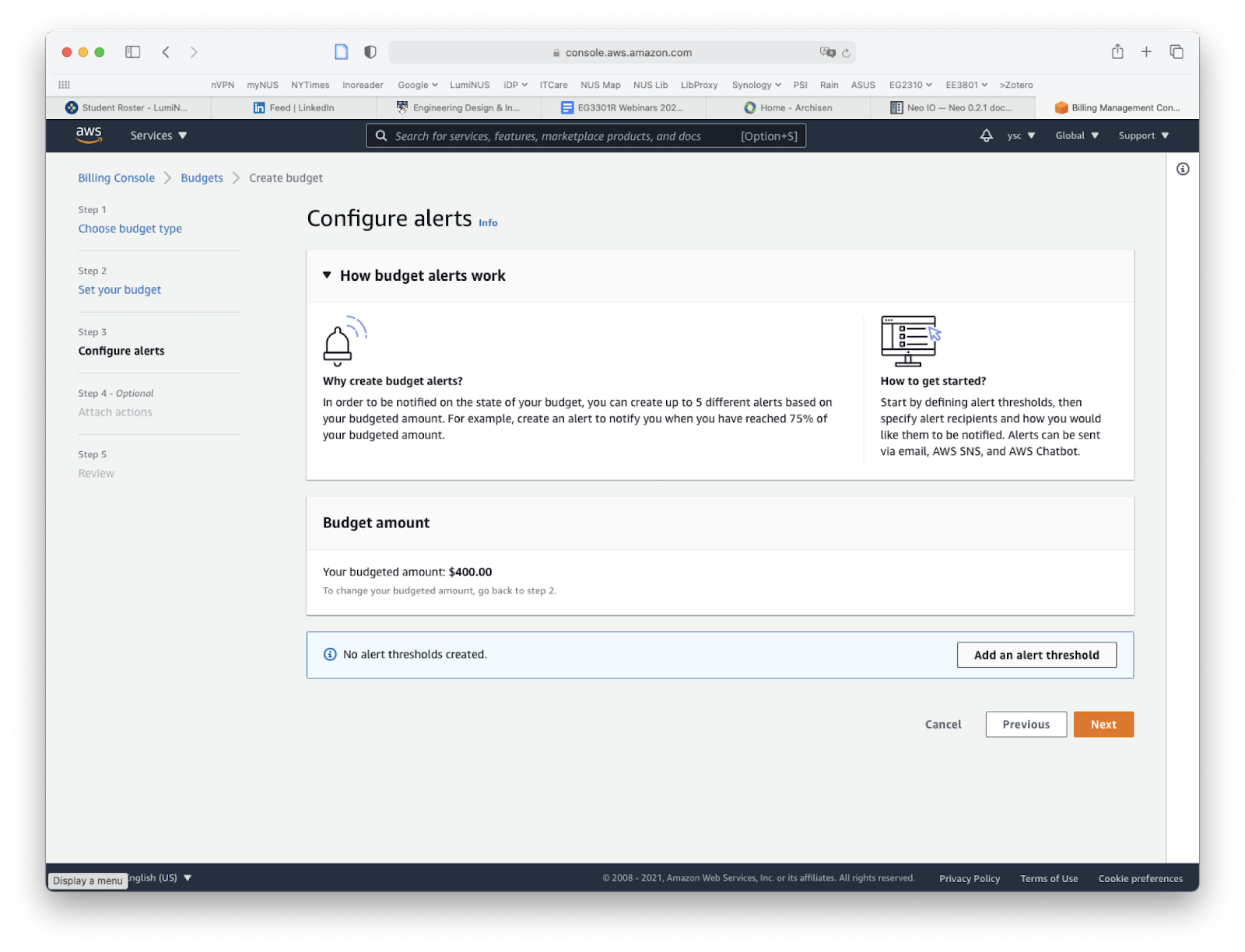
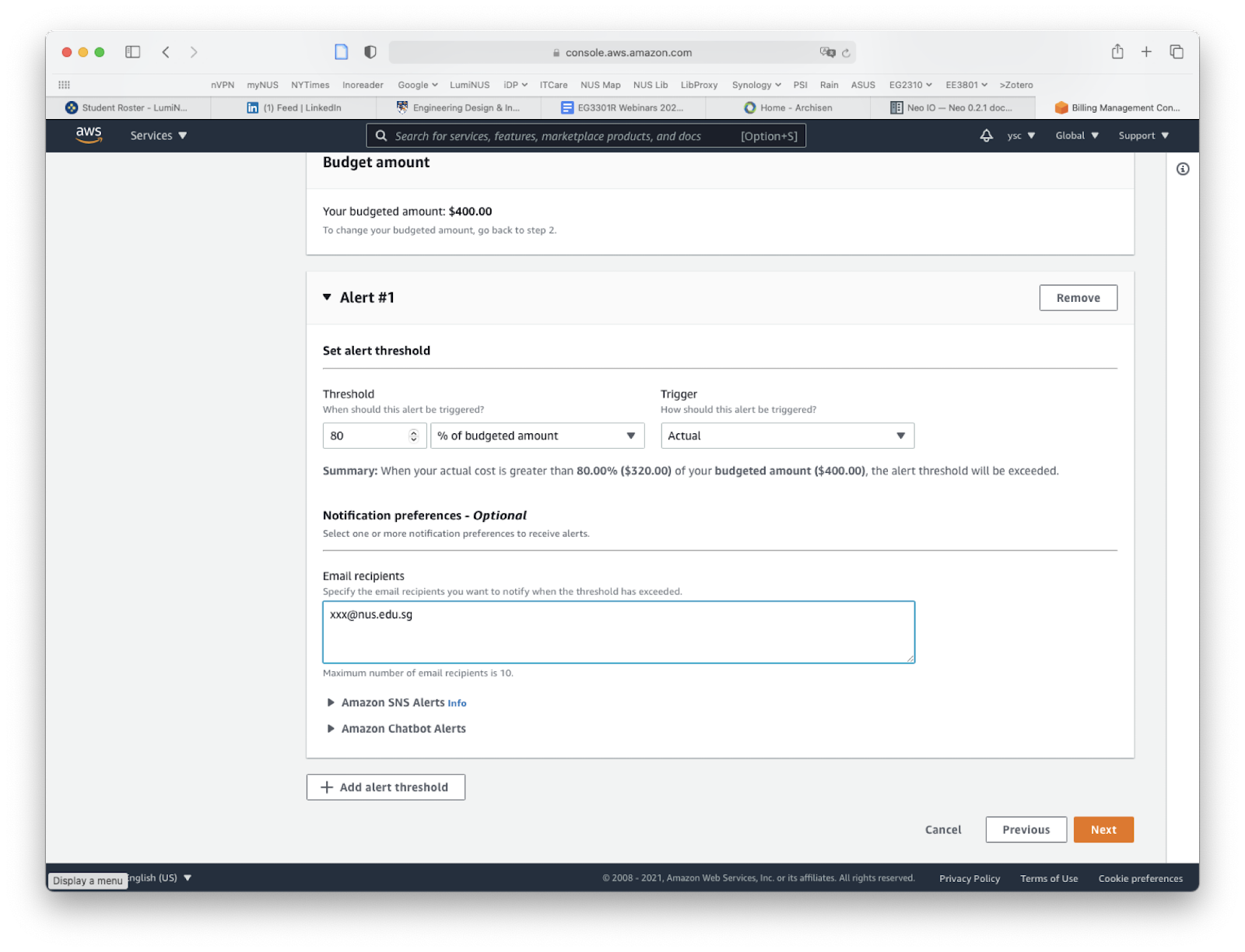
Enter “80” under “Threshold”, fill in your email address under “Email recipients”, click the “Next” button at the bottom of the page:
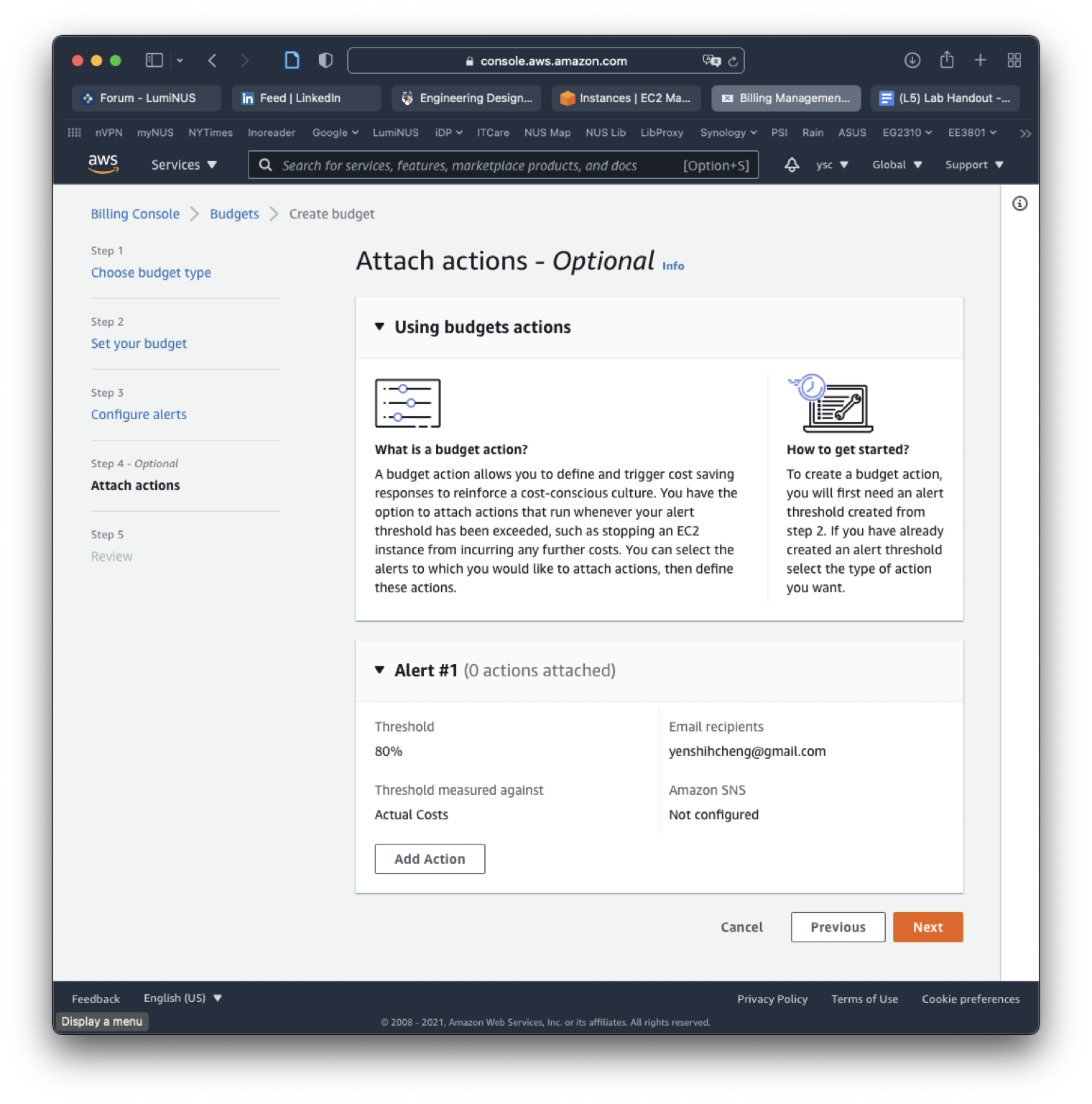
Click on the “Next” button to skip the “Attach actions” section:
Review your entries, and click the “Create budget” at the bottom of the page:
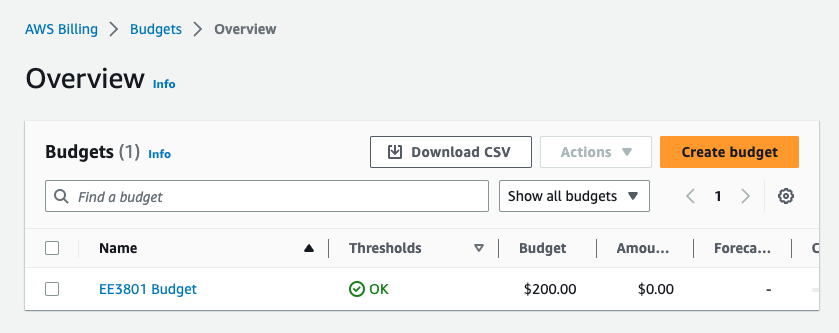
This will take you back to the budgets page to show you the budget you created:
You will now get an email warning when your charges exceed 80% of your credits.
Task
Include a screenshot of your budget page in your lab report.